Rich Content Formatting
Numbered Headings Macro
Numbered Headings Macro
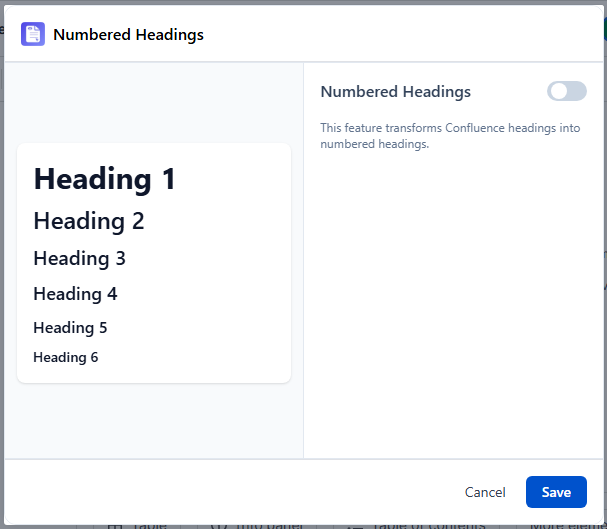
What It Does
The Numbered Headings macro automatically adds hierarchical numbers to all headings on a page (1, 1.1, 1.1.1, etc.) without manually typing them. If you add or remove a heading, numbering updates automatically on next page view.
When to Use
- Legal or compliance documents where section references must be precise (e.g., "see section 3.2.1")
- Long technical specifications with deeply nested sections
- Project plans or proposals with numbered deliverables
- Any document where "refer to section X" needs to be unambiguous
How to Use
Numbered Headings is a page-level byline button, not an inline macro. It appears in the page byline area (the metadata strip below the page title).
- Open the page in view mode
- Click the Numbered Heading | Clovity button in the page byline
- A settings panel opens - enable numbering and configure the format
- Click Save - the page headings update immediately
Configuration Options
| Setting | Options |
|---|---|
| Enable / Disable | Toggle numbered headings on or off for this page |
| Number format | Decimal (1, 1.1, 1.1.1), Latin lower (a,b,c), Latin upper (A,B,C), Roman lower (i,ii,iii), Roman upper (I,II,III) |
| Skip headings | Multi-select - choose which heading levels (H1–H6) to exclude from numbering |
Behavior Notes
- Numbering is applied to the live page HTML - heading text in the editor is not modified
- Settings are stored per-page - each page has its own enable/format configuration
- It is not inserted via "/" in the editor - it is a separate byline action button