Rich Content Formatting
Form Macro
Form Macro
What It Does
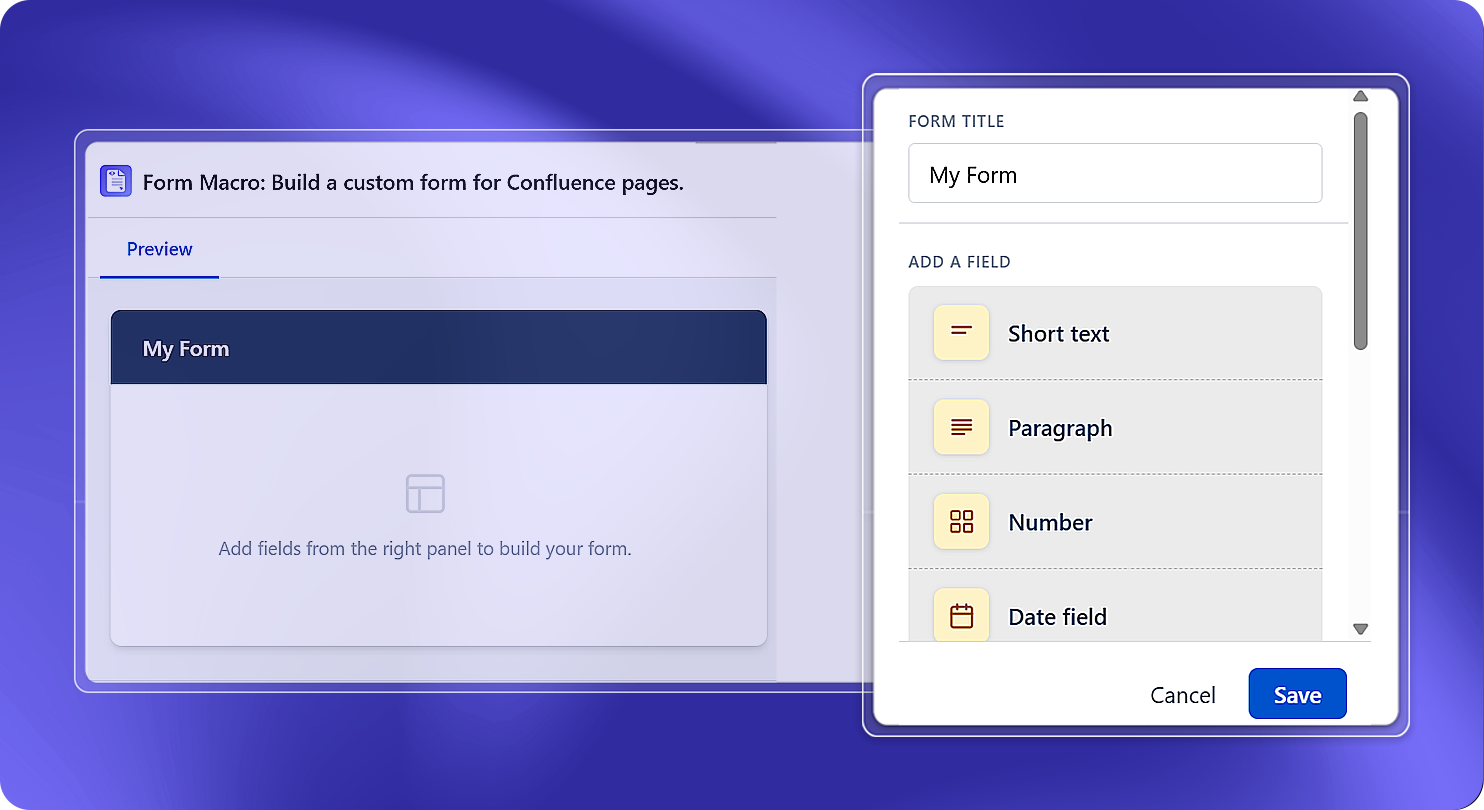
The Form macro embeds a structured input form directly on any Confluence page. You give the form a title, then build it by adding fields from a list of available field types. The form preview updates as you add fields, so you can see how it will look before publishing.
How to Set It Up
- Insert the Form macro on your page
- Enter a Form Title - this appears as the dark header bar at the top of the form (e.g. "My Form")
- Under Add a Field, click any field type to add it to the form
- The added field appears under Form Fields - you can reorder fields using the up/down arrows and remove them with the delete button
- Continue adding fields until the form is complete
- Publish the page
Form Title
| Setting | Description |
|---|---|
| Form Title | Required - displayed as a bold header at the top of the rendered form |
Available Field Types
Click any of the following from the Add a Field section to add it to your form:
| Field Type | Description |
|---|---|
| Short text | Single-line text input - for names, short answers, IDs |
| Paragraph | Multi-line text input - for descriptions, comments, or longer responses |
| Number | Numeric input field |
| Date field | Calendar date picker |
| Attachment upload | Lets the form submitter upload a file |
| Dropdown list | Single-select dropdown from a list of options |
| Page list | Lets the submitter select from Confluence pages |
| User list | Lets the submitter select a Confluence user |
| Label list | Lets the submitter select from Confluence labels |
| Table field | A table-based input field |
Managing Form Fields
Once a field is added to the Form Fields list:
- Reorder - use the up/down arrows on the right of each field to change its position
- Remove - click the delete (×) button to remove a field from the form
Common Use Cases
- Request intake: Build an IT or HR request form with short text, dropdown, and attachment upload fields
- Feedback collection: Use paragraph and dropdown fields to gather structured post-event feedback
- Data collection: Use number, date, and user list fields to capture structured information from team members
- File submission: Use the attachment upload field to let users submit files directly through a Confluence page