Rich Content Formatting
Number List Macro
Number List Macro
What It Does
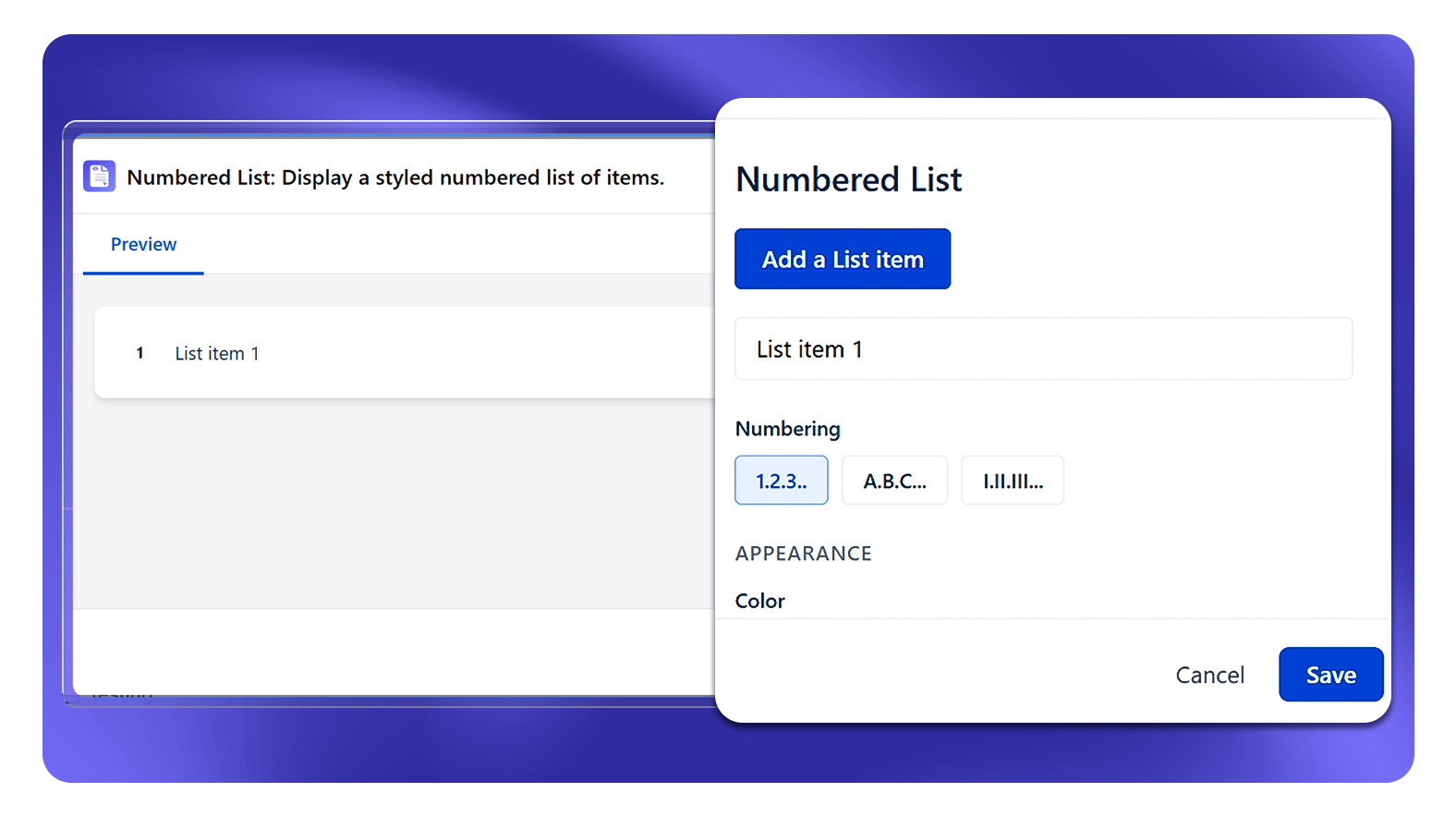
The Number List macro creates a styled numbered list on a Confluence page. You add each list item individually using the Add a List item button, choose a numbering style, set a color, pick a variation, and toggle rounded corners - all from the config panel.
How to Set It Up
- Insert the Number List macro on your page
- Click Add a List item to add your first item - a text input appears for that item
- Type the item text, then click Add a List item again to add more
- Choose a Numbering style
- Under Appearance, select a Color, Variation, and toggle Fully rounded corners if desired
- Publish the page
Configuration Options
Numbering
| Option | Description |
|---|---|
| 1, 2, 3… | Standard decimal numbering |
| A, B, C… | Alphabetical numbering |
| I, II, III… | Roman numeral numbering |
Appearance
| Setting | Options | Description |
|---|---|---|
| Color | Preset swatches (dark, white, blue, green, orange, red, purple, black) + custom picker | Sets the color of the number markers |
| Variation | Filled, Outlined, Plain | Controls the visual style of the number badge - Filled shows a solid colored badge, Outlined shows a border only, Plain shows the number without a badge |
| Fully rounded corners | Toggle on / off | When on, the number badge uses fully circular/pill-shaped corners |
Common Use Cases
- Step-by-step guides: Add each step as a list item with a color that matches your page theme
- Ranked lists: Use A, B, C… or I, II, III… numbering to show priority or ranking
- Procedures: Use Filled variation with a bold color to make each step number visually stand out
- Structured content: Use Plain variation for a clean, minimal numbered list with custom color