Features
Result Limit
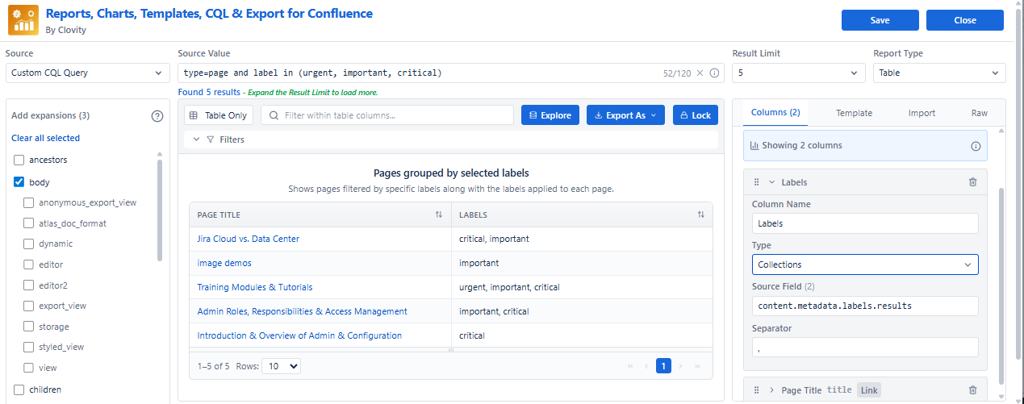
Result Limit specifies the maximum number of records to be returned in a Reports, Charts, Templates, CQL & Export for Confluence report. It controls dataset size, report performance, and how many rows appear in the published view.
Purpose
| Purpose | Detail |
|---|---|
| Control dataset size | Limit the number of results displayed in the report |
| Improve performance | Smaller result sets load faster - both in editor and on the published page |
| Manage large datasets | Prevent overwhelming displays when a data source returns thousands of records |
| Pagination-ready | Works together with Pagination to let users navigate large result sets efficiently |
How to Set Result Limit
- Open the macro editor.
- Locate the Result Limit field in the header bar or right panel.
- Enter the desired limit (e.g., 50, 100, 500).
- Live Preview updates immediately to show the limited result set.
- Save when satisfied - the limit applies to the published report.
Best Practices
| Scenario | Recommended Limit |
|---|---|
| First-time setup / testing | 50 - fast preview, easy to verify |
| Standard operational reports | 100–200 - good balance of data and performance |
| Comprehensive audits / governance | 500+ - use with Pagination for navigation |
| Daily or weekly digest reports | 25–50 - keeps the report focused and readable |
| Export to CSV for full data | Set high (e.g., 1000) then export - don't rely on paginated view |
- Start with smaller limits (50–100) for faster testing
- Increase as needed for comprehensive reports
- Always combine high limits with Pagination for user-friendly navigation
- Consider performance when setting very high limits with many expansions loaded
Tip: For full data exports, set a high Result Limit, verify in Live Preview, then use the Export button to download as CSV or JSON rather than presenting all rows on the page.