Features
Raw View
Raw View displays the raw JSON data returned by Confluence for the content in your report. It shows the actual data structure so you can discover field paths, inspect metadata, and debug configuration issues.
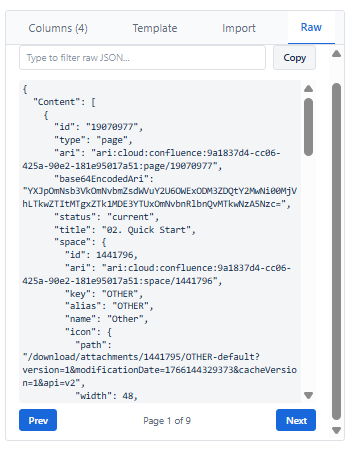
What Raw View Helps You Do
| Purpose | Detail |
|---|---|
| Discover available fields | Browse all fields returned by your data source and loaded expansions |
| Find exact JSON paths | Get the precise field path to use in column Data Value settings |
| Inspect data structure | Understand how Confluence returns nested objects and arrays |
| Debug blank columns | Verify whether a field exists and has a value for your content |
| Debug filter issues | Confirm field values match what your filter is comparing against |
When to Use Raw View
- A column shows empty or unexpected values - check if the field path is correct
- A filter is not behaving as expected - confirm the field name and value format
- You need the exact JSON path for a field - copy it directly from Raw View
- You want to discover what fields are available after loading an expansion
How to Access Raw View
- Open the macro editor.
- Navigate to the Raw tab in the right panel configuration tabs.
- Raw View displays the JSON data from your current Live Preview results.
- Use the search box to find a specific field name quickly.
- Copy exact field paths to use in columns or filters.
Tips for Using Raw View
- Load the required expansion first - fields only appear in Raw View after their expansion group is loaded
- Use the search box to find field names faster instead of scrolling through large JSON
- Copy the exact path - even small differences (uppercase/lowercase) cause blank columns
- Check nested fields - some values are nested inside objects (e.g., version.by.displayName)
Note: Raw View shows data for the current Live Preview results only. If your data source returns no results, Raw View will be empty.