Dynamic Filter Controller
Tabs
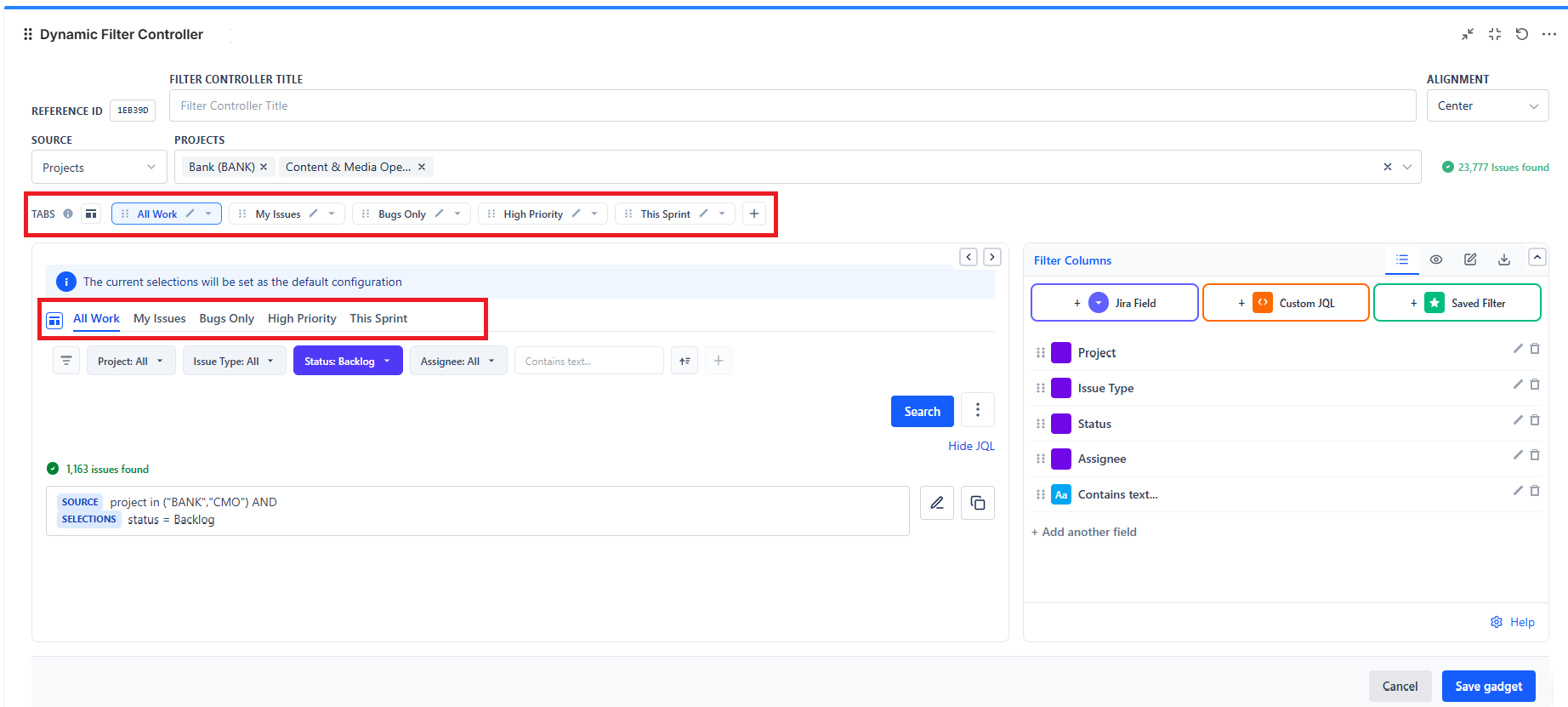
Tabs let users switch between preset filter views with a single click. Instead of manually selecting filters every time, users click a tab name and the whole dashboard snaps to that preset.
What Tabs Are
Each tab stores a set of pre-selected filter values. When a user clicks a tab, all the controller's filter fields jump to those values and all connected gadgets update instantly.
Example tabs:
- All Work → no filters active (shows everything)
- This Sprint → Sprint filter set to current sprint
- My Issues → Assignee filter set to current user
- Bugs Only → Issue Type filter set to Bug
- High Priority → Priority filter set to High + Highest
How to Create a Tab
- Open the Dynamic Filter Controller in edit mode
- In the Live Preview area, click the + button next to the existing tab
- A new tab appears - click its name to rename it
- Set the default filter values for this tab (select values in the filter bar)
- Repeat to add more tabs
- Click Save gadget
Managing Tabs
- Rename: Click the tab name to edit it inline
- Delete: Hover the tab and click the remove icon
- Reorder: Drag tabs to change their left-to-right order
Tab Design Tips
- Keep tab names short - "My Issues" not "Issues Assigned to Me"
- Always include an "All" or "All Work" tab - users need a one-click reset
- Order tabs by frequency of use - most common tabs on the left
- Use 3–6 tabs - more than 6 makes the bar cluttered
Common Tab Patterns
| Tab Name | Preset Filters | Best For |
|---|---|---|
| All Work | (no filters) | Default / reset view |
| My Issues | Assignee = currentUser() | Personal workqueue |
| This Sprint | Sprint = active sprint | Sprint planning and standups |
| Bugs Only | Issue Type = Bug | Bug tracking and QA |
| Blockers | Labels = blocked OR Priority = Highest | Daily risk review |
| High Priority | Priority in (High, Highest) | Triage and prioritization |
| Done This Month | Status = Done AND resolved >= startOfMonth() | Retrospective and reporting |