Dynamic Filter Controller
Setup & Filter Types
Set up the Dynamic Filter Controller by choosing a base data source and adding the filter fields users will interact with.
Step 1: Base Data Source
The base data source defines the universe of issues that can be filtered. All gadgets connected to this controller will draw their data from this scope.

Choose the source type that covers the full scope of your dashboard:
| Source | When to Use |
|---|---|
| Projects | The dashboard covers one or more Jira projects |
| Saved Filter | You have a pre-defined filter that covers the dashboard scope |
| Custom JQL | You need precise scoping (e.g., project = TEAM AND issuetype in (Story, Bug, Task)) |
Tip: Use JQL as the base source to pre-scope the data, then let filter fields narrow it further. This keeps the dataset focused and avoids slow queries.
Step 2: Add Filter Fields
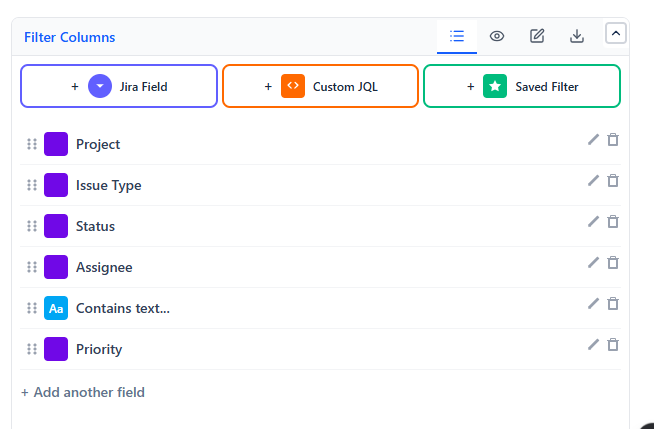
Filter fields are the dropdowns, search boxes, and toggles that appear in the filter bar.
- In the edit mode, go to the Fields tab
- Click + Add Field
- Choose the field type
- Configure and label the field
- Repeat for each filter you want
Filter Field Types
| Type | What It Creates | Best For |
|---|---|---|
| Jira Field | A dropdown of values for any Jira field | Status, Sprint, Assignee, Priority, Issue Type, Component, etc. |
| Contains Text | A free-text search box | Filtering by issue summary or description keywords |
| Custom JQL | An advanced JQL input field | Power users who need complex conditions |
| Saved Filter | A toggle button that applies a saved Jira filter | Reusing Jira filters as one-click toggles |
Recommended Filter Combinations
| Dashboard Type | Suggested Filter Fields |
|---|---|
| Sprint Dashboard | Sprint, Assignee, Status, Priority |
| Team Workload | Assignee, Status, Issue Type, Priority |
| Bug Tracking | Priority, Status, Assignee, Component |
| Release Dashboard | Fix Version, Priority, Status, Assignee |
| Executive KPI | Project, Status Category, Assignee |
Order and Labels
- Order the filter fields from most to least important - leftmost filters get the most use
- Label each field clearly - "Team Member" is clearer than "Assignee" for non-Jira users