Dynamic Filter Controller
Connecting Gadgets
After setting up the controller and saving it, connect your charts and issue lists so they respond to its filter bar.
The Reference ID
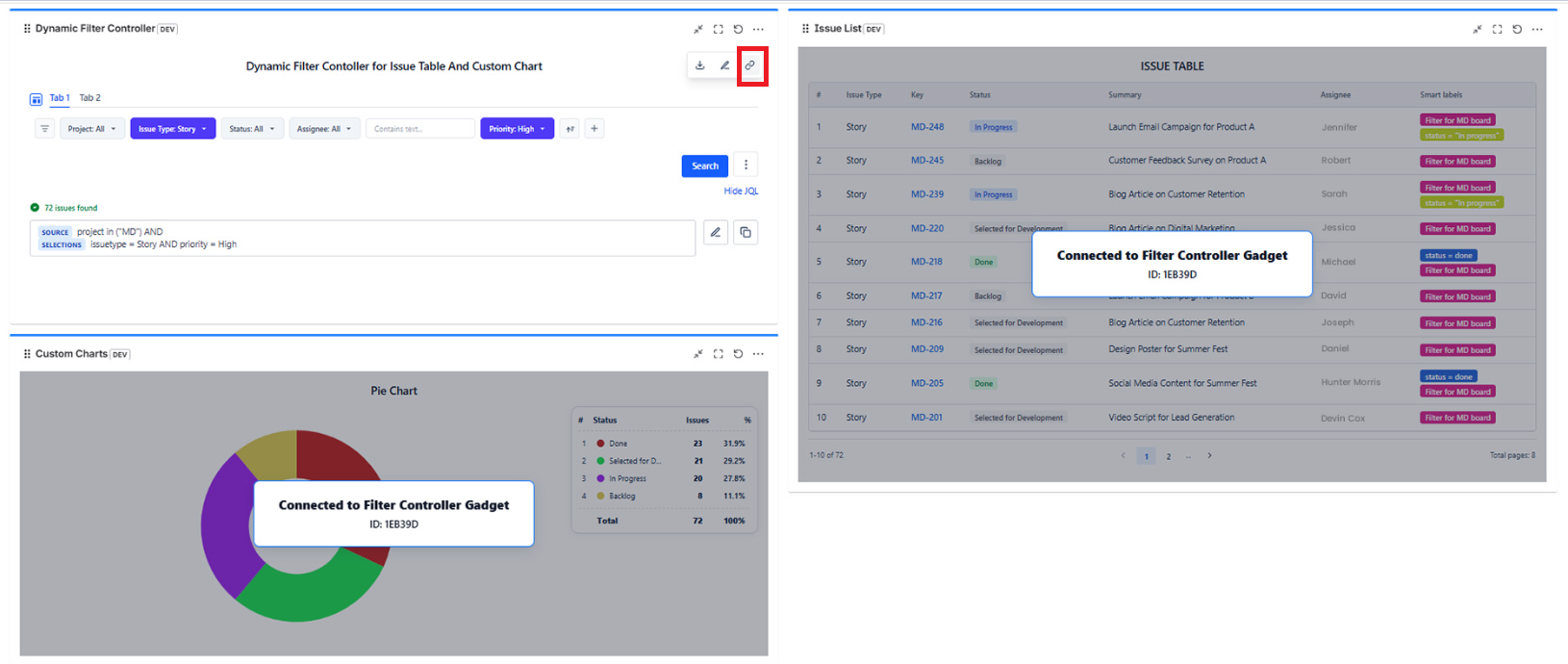
When you save the Dynamic Filter Controller, it generates a Reference ID - a short unique code (e.g., "ABC123") shown on the saved gadget.
This ID is how you link other gadgets to this controller. Each controller on a dashboard has its own Reference ID.
How to Connect a Gadget
- Open the gadget you want to connect (Custom Charts, Issue List, Time in Status, etc.) in edit mode
- In the left panel, change Source Type to Dynamic Filter Controller
- A dropdown appears - select your controller by its Reference ID
- Click Save gadget
Repeat for every gadget you want the controller to drive.
Verifying Connections
To see which gadgets are connected, click "Show Connected Charts" in the controller. All connected gadgets on the dashboard are highlighted.
Troubleshooting Connections
| Symptom | Fix |
|---|---|
| Gadget not updating when filter changes | Verify the gadget's Source Type is "Dynamic Filter Controller" and the correct Reference ID is selected |
| Controller doesn't appear in the dropdown | Both gadgets must be on the same dashboard |
| Wrong data showing after filter selection | Check the controller's base data source - it may be scoped differently than expected |
| Dashboard still shows old data | Try a hard refresh (Ctrl+F5) and re-save the controller without changes |
Display Options
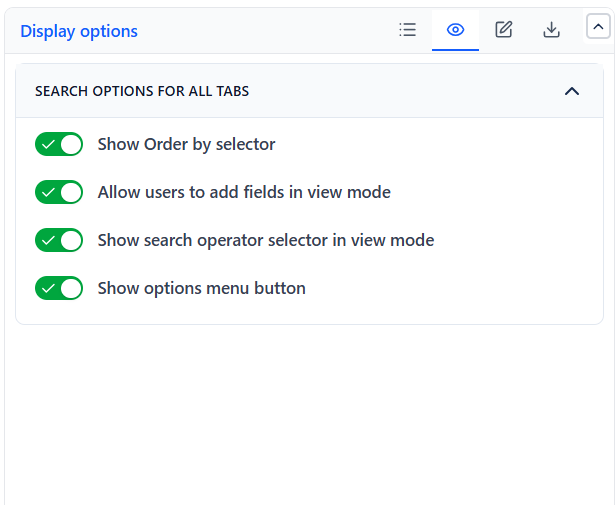
Control what users can see and do in view mode:
| Option | What It Allows |
|---|---|
| Show Sorting Options | Users can sort connected Issue Lists from the filter bar |
| Allow Add Fields | Users can temporarily add extra filter fields in view mode (they do not persist) |
| Show AND/OR Selector | Users can toggle whether multiple active filters combine with AND or OR logic |
| Show Options Menu | Shows or hides the gadget's options menu button |
What Users Can Do in View Mode
Once the dashboard is saved and edit mode is closed, users can:
- Pick values from dropdown filter menus
- Type keywords into text search fields
- Click tabs to switch between preset views
- Click Search to apply their selections
- Click Reset to clear all filters and return to the default view
- Add temporary extra fields (if "Allow Add Fields" is on)