Attachment Management & Audit
Audit Logs
Audit Logs
What Are Audit Logs?
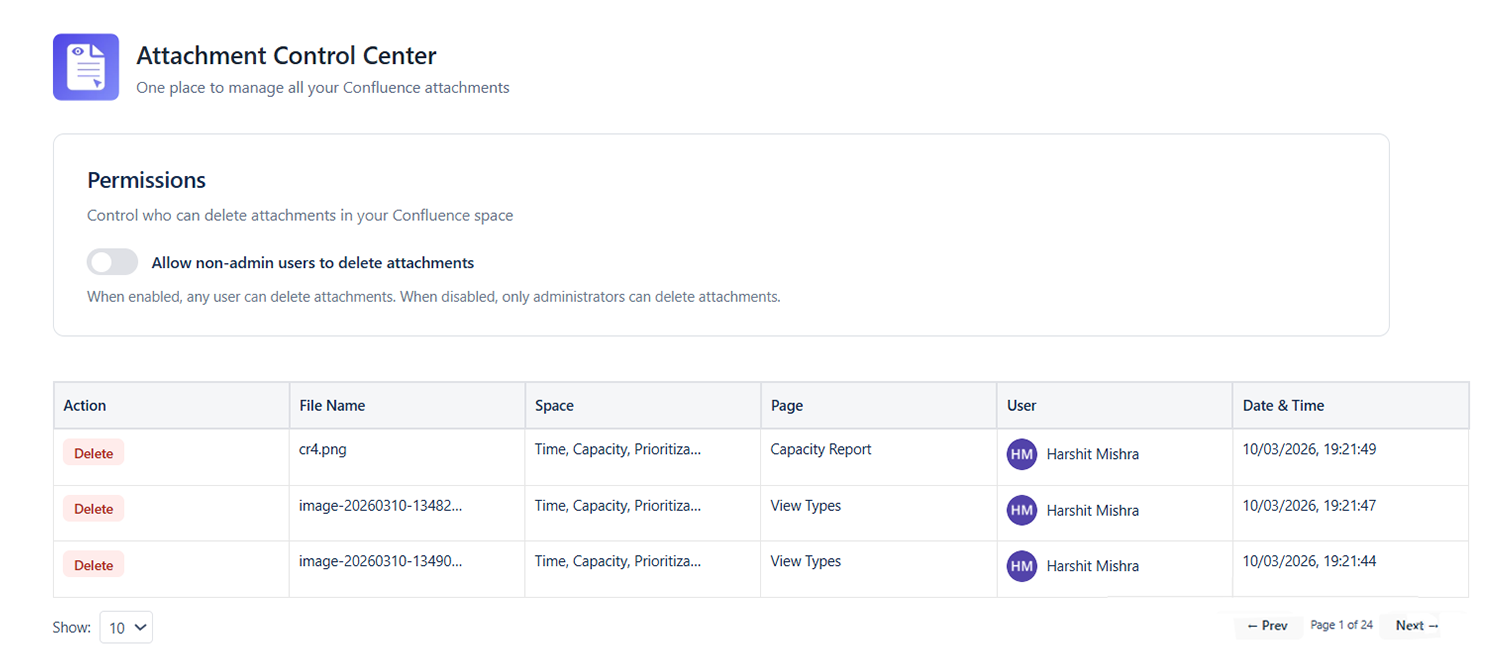
The Audit Logs section records all attachment-related actions performed via the Attachment Management Center. Use it to track who deleted files, when labels were applied, and which bulk operations have been run - and by whom.
What Gets Logged
| Action | Logged Details |
|---|---|
| Attachment Deleted | File name, page, file size, deleted by, timestamp |
| Bulk Delete | Count of files, total size, deleted by, timestamp, list of file names |
| Label Added | File name, label applied, added by, timestamp |
| Label Removed | File name, label removed, removed by, timestamp |
| Bulk Label | Count of files affected, label applied, performed by, timestamp |
| Settings Changed | Setting name, old value, new value, changed by, timestamp |
Accessing Audit Logs
- Go to Space Settings → Apps → Attachment Management Center
- Click the Audit Log tab at the top of the Attachment Center panel
- The log loads showing the most recent 100 events, newest first
Filtering the Audit Log
| Filter | Purpose |
|---|---|
| Date Range | View events within a specific date window |
| Action Type | Show only Deletes, Label changes, or Settings changes |
| Performed By | Filter to events from a specific Confluence user |
| File Name | Search for events related to a specific file name |
Reading a Log Entry
Each log entry shows:
- Timestamp: Date and time of the action (Confluence site timezone)
- Action: What was done (e.g., "Bulk Delete", "Label Added")
- Performed By: The Confluence user who triggered the action
- Details: Summary of what was affected (e.g., "12 files, 45.3 MB total")
- Expand icon: Click to see the full list of affected files for bulk operations
Exporting Audit Logs
- Apply date range and any other filters to scope the data
- Click Export (top right of the Audit Log tab)
- Choose CSV for spreadsheet analysis or PDF for a formatted report
- The file downloads automatically
Tip: Export monthly audit logs as part of a regular compliance or governance review process.
Retention Policy
Audit log entries are retained for 90 days by default. Entries older than 90 days are automatically purged. Contact your Confluence site administrator if you need to extend the retention period for compliance requirements.
Common Audit Use Cases
| Scenario | How to Use the Audit Log |
|---|---|
| Someone deleted important files | Filter by Action = Deleted, find the event, expand to see file names |
| Verify a cleanup was completed | Filter by date range of the cleanup, confirm bulk delete events appear |
| Find out who bulk-labeled files | Filter by Action = Label, identify the bulk label events |
| Investigate unexpected storage drop | Filter by Action = Deleted, sort by date to find large delete events |
| Generate a compliance report | Export filtered logs to CSV and attach to your audit documentation |