Filters & Sorting
Filters & Sorting
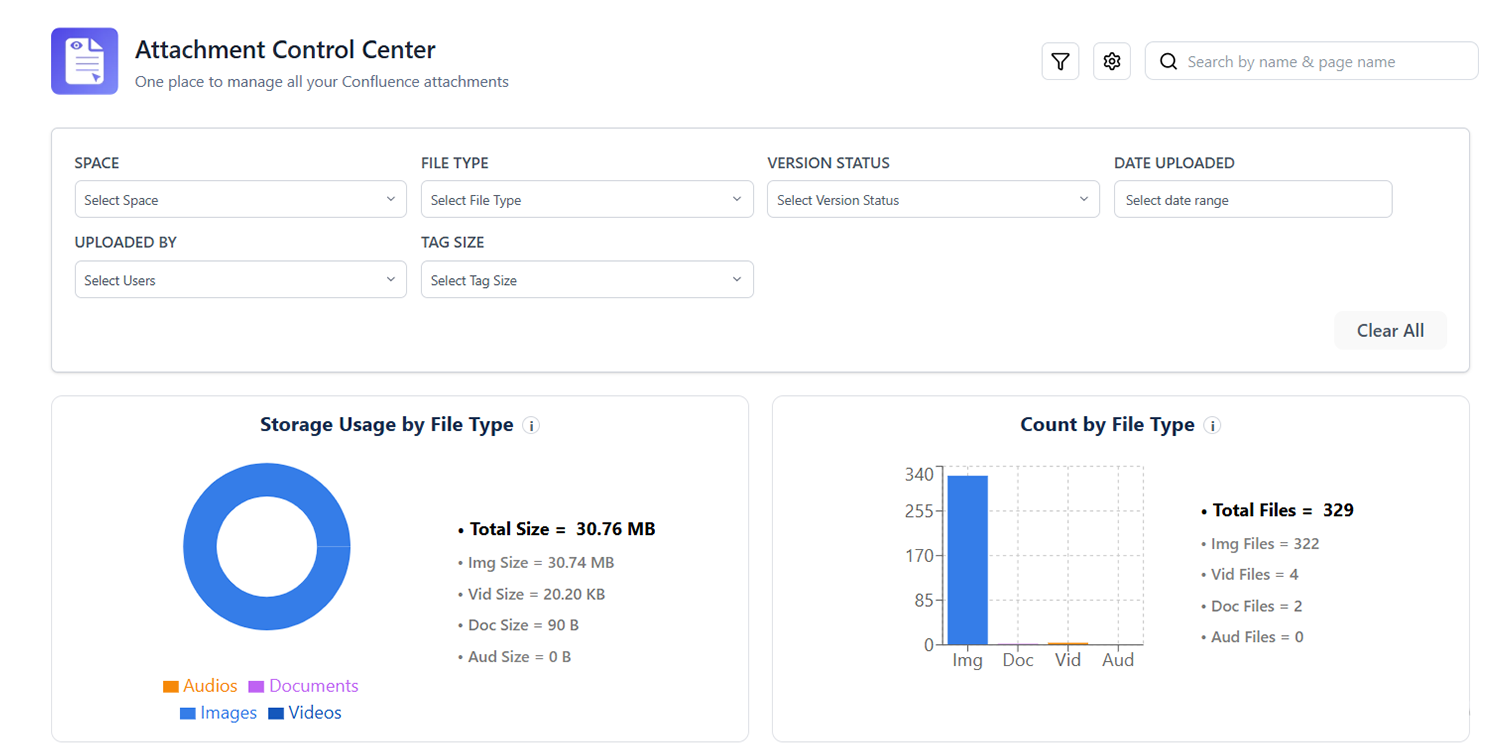
Overview
The Filters & Sorting panel lets you narrow the attachment list to exactly the files you are looking for. You can filter by file type, upload date, uploader, file size, page, and link status - and combine any number of these filters together.
Available Filters
| Filter | Options | Use Case |
|---|---|---|
| File Type | PDF, Image (PNG/JPG/GIF), Spreadsheet (XLSX/CSV), Document (DOCX), Video, Other | Find all PDFs in a space for a compliance review |
| Upload Date | Custom date range picker | Identify attachments uploaded during a specific project or sprint |
| Uploaded By | Confluence user picker | Find all files uploaded by a specific user |
| Page | Page title search / picker | See all attachments on a specific page |
| File Size | Greater than / Less than (KB or MB input) | Find files over 10 MB to identify large storage consumers |
| Link Status | Linked / Orphaned / All | Show only orphaned attachments not referenced in any page content |
| Label | Label picker | Find attachments with a specific label (e.g., approved) |
Applying Filters
- Click the Filters button above the attachment table
- The filter panel expands below the table header
- Select your desired filter values - the table updates live as you make each selection
- Active filters appear as chips above the table; click the × on a chip to remove that filter
- Click Clear All to remove all active filters at once
Combining Filters
Filters work with AND logic - all active filters must match for an attachment to appear in results. Examples:
- File Type = PDF AND Upload Date = Jan–Mar 2024 → only PDFs uploaded in Q1 2024
- Link Status = Orphaned AND File Size > 5 MB → large orphaned files (prime delete candidates)
- Uploaded By = [user] AND Label = draft → draft files from a specific team member
Sorting
Click any column header to sort the attachment list by that column:
| Column | Sort Options |
|---|---|
| File Name | A→Z or Z→A alphabetically |
| Page | A→Z by page title |
| Uploaded By | A→Z by user display name |
| Upload Date | Newest first or Oldest first |
| File Size | Largest first or Smallest first |
The current sort column is indicated by an up/down arrow in the column header. Click the header again to reverse the sort direction.
Saving Filter Presets
Frequently used filter combinations can be saved as presets for faster access in future sessions:
- Apply the filters you want to save
- Click Save as Preset (below the active filter chips)
- Give the preset a name (e.g., "Large Orphaned PDFs")
- Click Save
Saved presets appear in the Presets dropdown at the top of the filter panel. Presets are saved per-user and per-space.