Page Templates
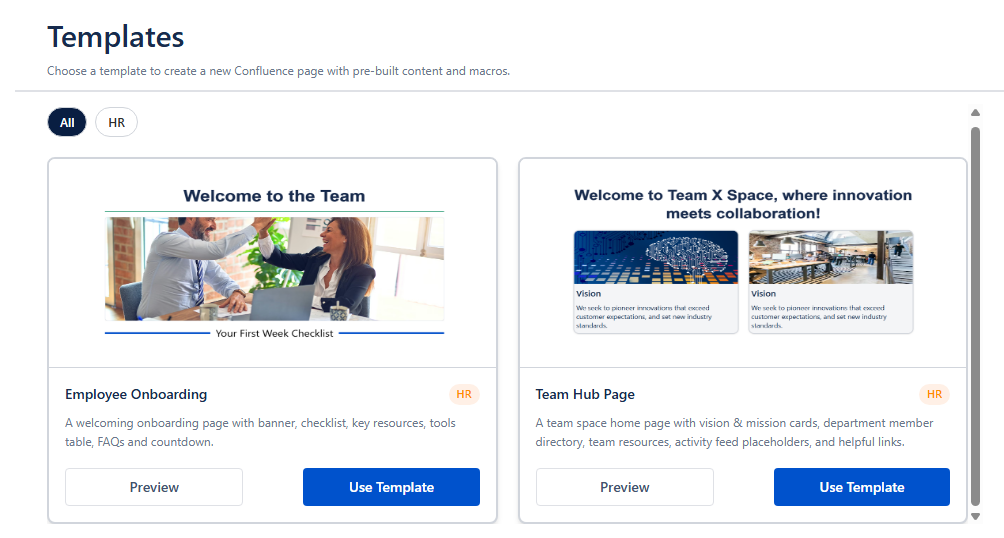
What Templates Are Included?
Content Formatting Macros includes four ready-to-use Confluence page templates that demonstrate the app's capabilities in realistic, production-ready page designs.
Template 1 - Team Hub
A team space home page with a welcome header, vision and mission cards, a photo-based member directory, resource cards, and helpful links. Also creates two child pages: Meeting Notes and Ways of Working.
Page Structure
| Section | Content |
|---|
| Welcome Header | Styled title with team name and welcome message |
| Team Culture | Vision and Mission background cards side by side |
| Get in Touch | Button links to Slack channel, team email, support desk, and product wiki |
| Meet the Team | Department label cards + person photo cards in a 4-column grid (Engineering, Marketing, Product) |
| Team Activity | Placeholder section for Jira macros (issues, charts, or timeline) |
| Recently Updated | Placeholder for Confluence Recently Updated macro |
| Team Resources | 3 Advanced Cards linking to Onboarding Resources, Ways of Working, and Meeting Notes |
| Helpful Links | Buttons in 3 columns linking to tools, repos, and dashboards |
Macros Used
- Background (Vision and Mission cards)
- Buttons (Get in Touch links, Helpful Links columns)
- Advanced Cards (4-column member directory, 3-column resource cards)
Child Pages Created
| Child Page | Contents |
|---|
| Meeting Notes | Sprint planning table, committed tickets table, decisions and action items table |
| Ways of Working | Team ritual cards (Standup, Sprint Planning, Retro), team norms list, definition of done |
Template 2 - Company Hub
A company-wide intranet landing page with a rotating banner, essentials panel, department directory, HR resources, and other resource links.
Page Structure
| Section | Content |
|---|
| Rotating Banner | Interactive Banner with 3 slides (Welcome, Connect & Grow, Knowledge Hub) |
| Essentials | Quick-access buttons: Single Sign-On, Expenses, HR tool |
| Who We Are | Company description paragraph |
| Recent Blogs | Placeholder for a Confluence Blog Posts stream |
| Team in Action | Image background section with company culture description |
| Connect on Socials | Buttons for Twitter, LinkedIn, and YouTube |
| Departments Grid | 10 Advanced Cards in a 5-column grid: Finance, Marketing, People, GTM, Legal, Education, Product, Engineering, Sales, UX/UI |
| HR Help | Image background with HR team description and HR Hub button |
| HR FAQ | 3 collapsible expand sections: New Employees, Referral Program, Career Development |
| Other Resources | 3-column layout: IT Support, Together Resources, Tools & Apps |
Macros Used
- Interactive Banner (3-slide rotating carousel)
- Background (color and image variants for multiple sections)
- Buttons (vertical and horizontal, for Essentials and social links)
- Advanced Cards (10-card department grid, 5 columns)
- Advanced Expand (HR FAQ collapsible items)
Template 3 - Monthly Project Report
A single-page monthly report covering project summary, KPI targets, key initiatives (tabbed), upcoming focus areas, and team kudos.
Page Structure
| Section | Content |
|---|
| Report Banner | Interactive Banner with report title and monthly summary |
| Project Summary | Table with project name, status date, PM, stakeholders, and links - alongside a Table of Contents |
| Target Check | 3 Background cards, each showing a KPI's current value vs. target and insights |
| Key Initiatives | Custom Tabs - one tab per initiative, each with a metrics table, insights, and project links |
| Next Up | 3 Advanced Cards for upcoming focus areas |
| Kudos | Table recognizing team members with appreciation notes |
Macros Used
- Interactive Banner
- Background (Target Check KPI cards)
- Tooltip (inline metric definitions, e.g. MAU)
- Custom Tabs (one tab per initiative in the Key Initiatives section)
- Advanced Cards (Next Up section, 3 cards)
Template 4 - User Guide
A structured product or feature documentation page showcasing the Buttons macro in detail - styles, shapes, sizes, icon positions, hover effects, and font options - alongside Getting Started cards and a quick links footer.
Page Structure
| Section | Content |
|---|
| Hero | Full-width gradient Background with Custom Fonts title (macro name, subtitle, tagline) |
| Introduction | 2-column layout - text description alongside a screenshot image background |
| Examples | Buttons macro rows demonstrating all style variants, shapes, sizes, icon positions, hover effects, and font families |
| Getting Started | Advanced Cards inside a Background - How To Insert, Templates, Configuration, How To Edit/Remove |
| Quick Links | Dark full-width Background with horizontal Buttons rows for site navigation |
Macros Used
- Background (hero gradient, screenshot columns, Getting Started wrapper, footer)
- Custom Fonts (hero title styling)
- Buttons (all examples rows, quick links footer)
- Advanced Cards (Getting Started section, 4 cards in 1-column layout)
How to Access Templates
- In Confluence, click the Settings (gear icon) → look for Page Templates | Clovity under the Apps section in the left sidebar
- The template gallery opens - use the category filter pills (All, HR, Project, Documentation) to browse
- Click Preview on any card to see a full screenshot of the template
- Click Use Template on the card (or inside the preview modal)
- In the dialog that opens:
- Select a Space (required)
- Optionally choose a Parent Page to nest the new page under
- Optionally add or remove Labels (pre-filled from the template)
- Enter a Page Title (pre-filled with the template name)
- Click Create Page - the app creates the page and any child pages automatically via the Confluence API, with all macros pre-configured
- Click Open Page in the success dialog to go directly to the new page
Troubleshooting Templates
| Issue | Fix |
|---|
| Cannot find Page Templates in Confluence Settings | Confirm the app is installed and active - go to Settings → Manage apps and verify Content Formatting Macros shows "Active" |
| Template gallery is blank or won't load | Refresh the page; if it persists, re-install the app or contact support |
| Macros showing placeholder content | Click the macro's edit (pencil) icon and configure it with your real data, then publish |
| Team Hub child pages not created | Child pages (Meeting Notes, Ways of Working) are created automatically by the app via API - check that you have page-create permissions in the selected space |
| Banner images not loading | The images are bundled with the app - confirm the app version is up to date on the Marketplace |