Issue List Gadget
Smart Labels
Smart Labels add a colored badge to any issue that matches a condition. They make it easy to spot critical, overdue, blocked, or high-risk issues at a glance - without filtering the table.
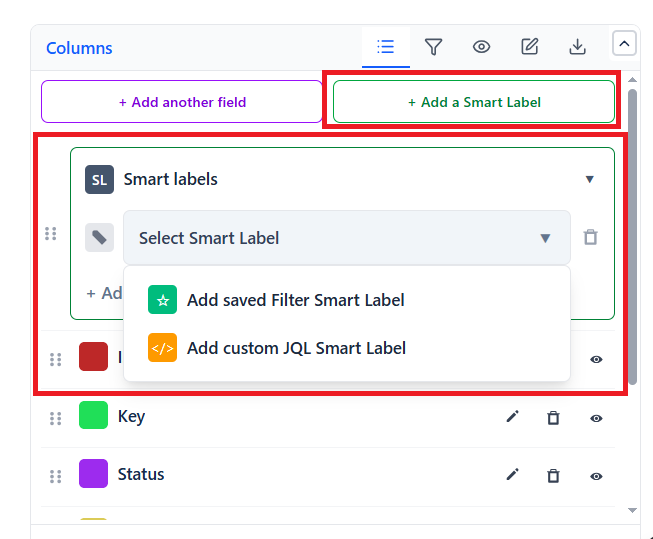
How Smart Labels Work
A Smart Label adds a new indicator column to the table. When an issue matches the label's condition, a colored badge appears in that column. Issues that don't match show an empty cell.
Multiple Smart Labels can be active at the same time - each gets its own column.
Two Types of Smart Labels
| Type | How It Works | Best When |
|---|---|---|
| JQL-Based | Shows badge if the issue matches a JQL condition | Custom conditions - overdue, blocked, SLA breach, any complex logic |
| Filter-Based | Shows badge if the issue matches a saved Jira filter | Reusing filter criteria already defined in Jira |
How to Add a Smart Label
- Open the Issue List gadget in edit mode
- In the right panel, find the Smart Labels section
- Click + Add Smart Label
- Enter a label name (e.g., "Overdue")
- Choose the label type: JQL-Based or Filter-Based
- Enter the JQL condition or select the saved filter
- Choose a badge color
- Save the gadget
Smart Label Examples
| Label | Type | Condition |
|---|---|---|
| Critical | JQL | priority = Highest |
| Overdue | JQL | duedate < now() AND resolution is EMPTY |
| Blocked | JQL | labels = blocked |
| Unassigned | JQL | assignee is EMPTY |
| Due Soon | JQL | duedate >= now() AND duedate <= 7d |
| Escalated | JQL | labels = escalated OR priority in (Highest, High) |
| My Watch | Filter | Any saved Jira filter you select |
Color Conventions
While any color works, a consistent convention helps users read the table faster:
- Red - urgent / breached (Overdue, Critical, Blocked)
- Orange - at risk / approaching deadline (Due Soon, High Priority)
- Blue - informational (Watching, Assigned to me)
- Green - positive state (Ready for Review, Approved)