Issue List Gadget
Quick Filters
Quick Filters add clickable buttons above the Issue List table. One click instantly filters the table to a preset view - no re-configuration needed.
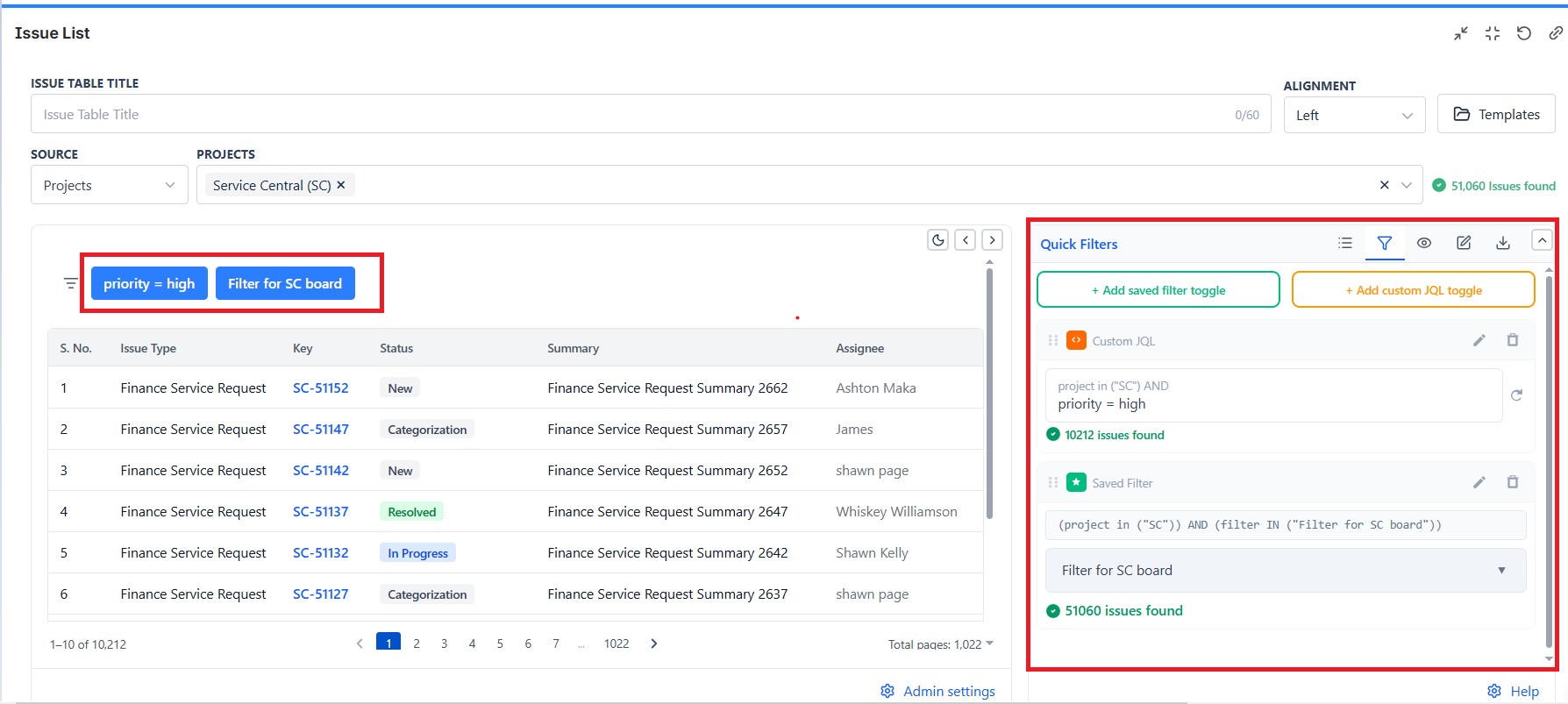
How Quick Filters Work
Each Quick Filter button applies a JQL condition to the current issue set. When clicked, the table reloads showing only issues that match. Click the button again to deactivate it.
Multiple filters can be active at the same time - AND/OR logic controls how they combine.
How to Add a Quick Filter
- Open the Issue List gadget in edit mode
- In the right panel, find the Quick Filters section
- Click + Add filter
- Enter a label (e.g., "My Issues")
- Enter the JQL condition
- Save the gadget
Quick Filter Ideas
| Button Label | JQL Condition |
|---|---|
| My Issues | assignee = currentUser() |
| Bugs Only | issuetype = Bug |
| High Priority | priority in (High, Highest) |
| Due This Week | duedate >= startOfWeek() AND duedate <= endOfWeek() |
| Unassigned | assignee is EMPTY |
| Blocked | labels = blocked |
| Overdue | duedate < now() AND resolution is EMPTY |
| This Sprint | sprint in openSprints() |
| Recently Updated | updated >= -7d |
AND vs OR Logic
When multiple Quick Filters are active, you choose how they combine:

| Mode | Behavior | Example |
|---|---|---|
| AND | Issues must match ALL active filters | "My Issues" AND "High Priority" → only my high-priority issues |
| OR | Issues must match ANY active filter | "My Issues" OR "Unassigned" → all issues assigned to me or to nobody |
Use AND when you want to narrow the result - e.g., "show only bugs that are also unassigned."
Use OR when you want to broaden the result - e.g., "show anything that's either a bug or overdue."