Advanced Content Navigation (Tabs)
Tab Label Content Mapper
Tab Label Content Mapper Guide
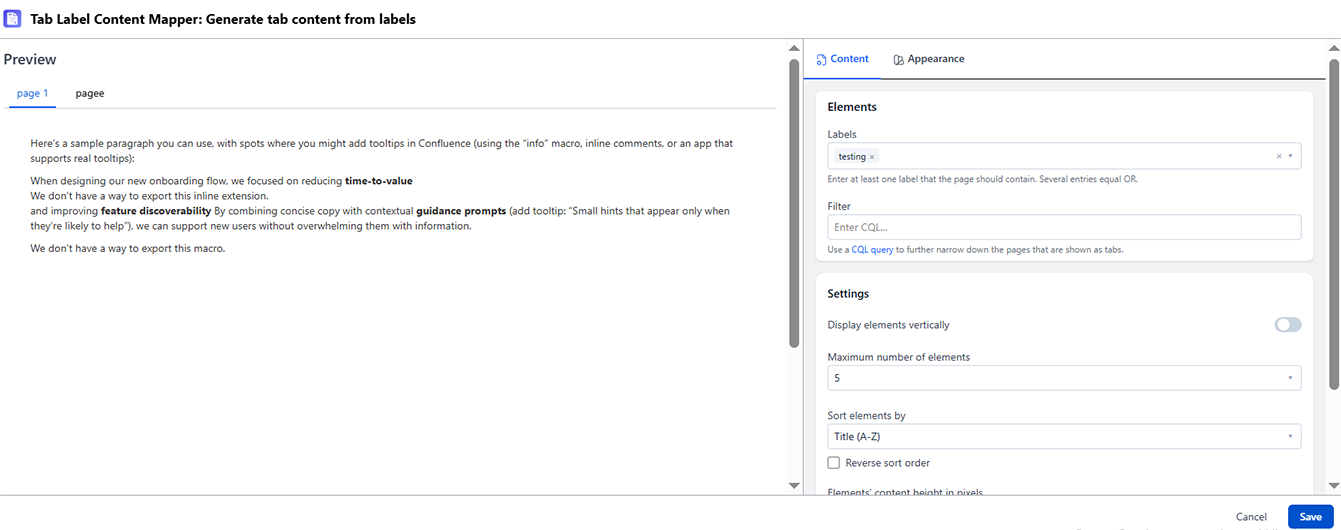
What It Does
The Tab Label Content Mapper creates tabs based on a label you enter in the macro configuration. You type one label name - every Confluence page that has been tagged with that label becomes its own separate tab. If three pages share the same label, three tabs are created, one per page, with each tab's title taken from the page title and its content pulled from that page.
When to Use It
- Multiple pages are already tagged with the same label and you want each of them as its own tab on a hub page
- You want tabs to reflect pages as they are tagged with or un-tagged from the label
- You want a cross-hierarchy view - pages from different parts of the space grouped by a shared label
How to Set It Up
- Tag each Confluence page you want as a tab with the same label (e.g., add the label
release-notesto every release-notes page) - Insert Tab Label Content Mapper directly on the page
- In the config panel, type the label name (e.g.,
release-notes) - Every page with that label appears as a separate tab - preview and publish
Settings Reference
| Setting | Description |
|---|---|
| Label | The label name to match - each page tagged with this label becomes one tab |
| Space | Restrict matching to a specific space (default: current space) |
| Sort | How tabs are ordered: Alphabetical, Created Date, Modified Date |
| Max Pages | Maximum number of pages (tabs) to display |
Behaviors
- One label input → one tab per page that carries that label
- If 3 pages share the label, 3 tabs are created; if 5 pages share it, 5 tabs are created
- Adding the label to a page adds it to the tab list
- Removing the label from a page removes it from the tab list
- Labels are case-insensitive in matching
- Only published pages the viewer has read permission to access appear as tabs