Getting Started
Installation & Setup
Prerequisites
Before installing, confirm:
- You are a Confluence Cloud site administrator (required to install Marketplace apps)
- Your Confluence instance is Confluence Cloud - this app does not support Data Center or Server
- You have access to the Atlassian Marketplace from your Confluence instance
Installation Steps
| Step | Action |
|---|---|
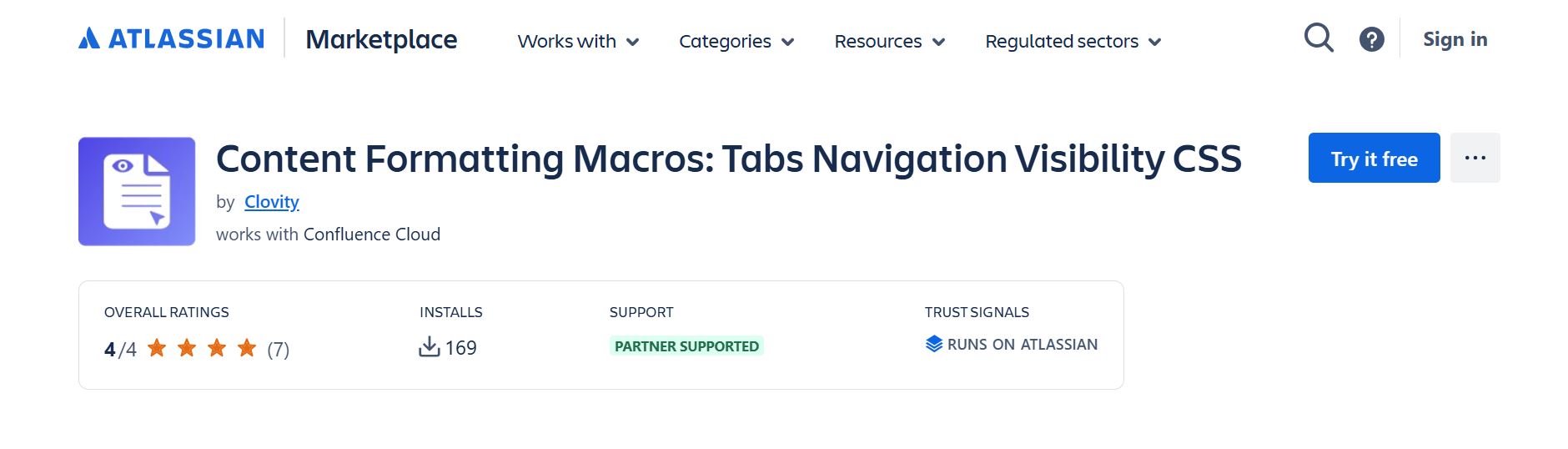
| 1 | Go to marketplace.atlassian.com and search for "Content Formatting Macros: Tabs Navigation Visibility CSS" |
| 2 | On the app listing, confirm Hosting → Cloud is supported |
| 3 | Click Try it free (30-day trial) or Buy now |
| 4 | Select your Atlassian Cloud site when prompted and choose Confluence |
| 5 | Review the permissions the app requires and click Accept to proceed |
| 6 | The app installs automatically - no restart required |
Permission Scopes Requested
The app requests the following scopes during installation:
| Permission | Reason |
|---|---|
| Read Confluence content | Tab mappers need to read child/labeled pages |
| Read space and page permissions | Conditional visibility evaluation |
| Read user profile | User Profile macro |
| Manage attachments | Attachment Management Center |
Post-Install Verification
After installation:
- Open any Confluence page in edit mode
- Click the + (Insert) button in the editor toolbar
- Search for "Alert" or "Tab Parent Content Mapper" - the macros should appear in the results
- If macros don't appear, go to Confluence Settings → Manage apps → Confirm Content Formatting Macros: Tabs Navigation Visibility CSS shows "Active"
Admin Checklist
- App installed from Marketplace
- All permissions accepted
- Post-install verification passed (macros appear in editor)
Uninstalling
To uninstall: Go to admin.atlassian.com → Apps → Manage Apps → click Content Formatting Macros → Uninstall. Macro placeholders will remain on pages but will no longer render until the app is re-installed.